Log In

Free gifts available with your purchase
Note: This product is the Native version. The HD version for AAX DSP users is also available.
The 4030 Retro Compressor is a new dynamic range control topology coupled with a wet/dry mix control to balance compressed and uncompressed signals. An active attack and release design allow aggressive compression settings with minimal artifact generation.
All Retro plug-ins use a McDSP designed output stage topology to eliminate digital clipping at any output level and produce a smoother distortion characteristic. This feature is in addition to the analog saturation modeling that has made McDSP famous over the last decade.
Retro plug-ins are a line of ‘classics’ that can live up to their own name without emulating something else.
Features
- Optimization for Apple Silicon and Latest Intel Processors
- Two activations per license / subscription
- High definition updated user interfaces
- New presets
- Zero Latency Algorithms
- Double Precision Processing
- Unique original algorithms with transparent yet vintage sound
- Anti-Clip Output Stage Topology
- Analog Saturation Modeling
- Mono and stereo versions
- Mix control
- Sidechain support
System Requirements
Mac
- macOS 10.13 or higher (64-bit only) (macOS 12 Monterey compatible)
- McDSP plugins run natively on Intel and M1 Apple Silicon processors
- McDSP HD plugins support AAX DSP plugin format, AAX Native, AU, and VST3 plugin formats
- McDSP plugins support Mac OS 10.13.x (High Sierra), 10.14.x (Mojave), 10.15.x (Catalina), 11.x (Big Sur), 12.x (Monterey), and Windows 10
- Mac OS version 10.12.x (Sierra) may work but is not officially supported. Earlier Mac OS versions are not officially supported
Windows
- Windows 7, 8 & 10 (64-bit only)
HD v7 Software Support
- AAX DSP
- AAX Native
- Audio Units (AU)
- VST3
Compatible DAW's
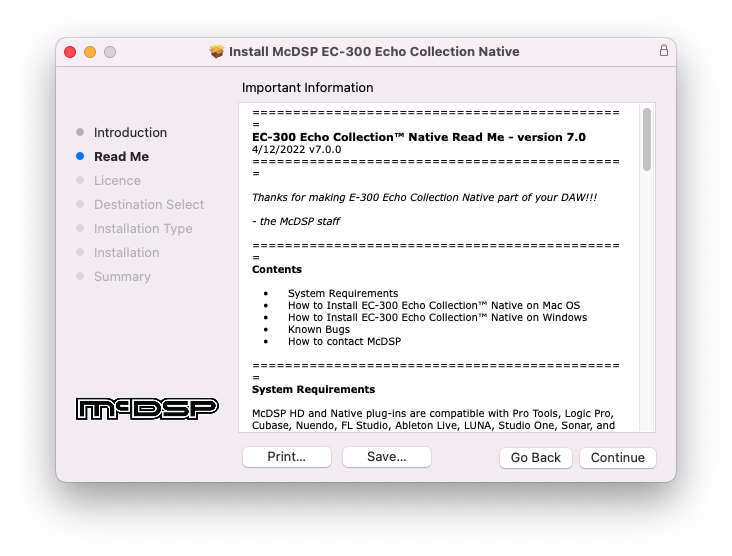
- McDSP HD and Native plugins are compatible with Pro Tools, Logic Pro, Cubase, Nuendo, Ableton Live, LUNA, Reaper, Sonar, Studio One, and other DAWs that support AAX, AU, and/or VST3 plugin formats
- As of v7.0, VST is no longer supported. VST versions of v6 McDSP plugins will no longer be updated and will be uninstalled
- McDSP HD plugins also support the VENUE S6L systems. McDSP VENUE plugins are packaged in a VENUE specific installer available on the McDSP website.
Activation:
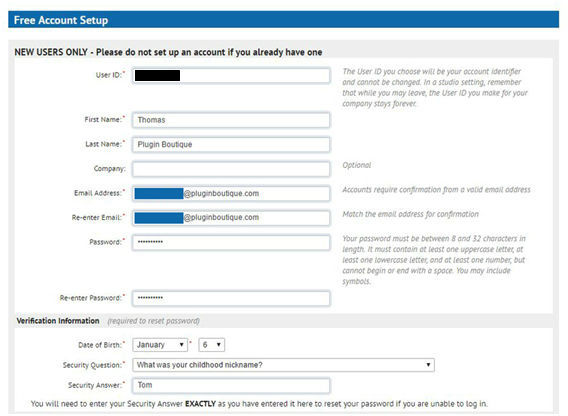
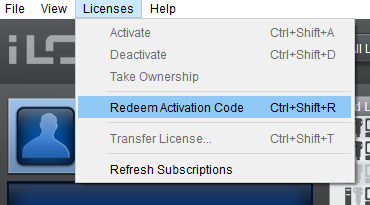
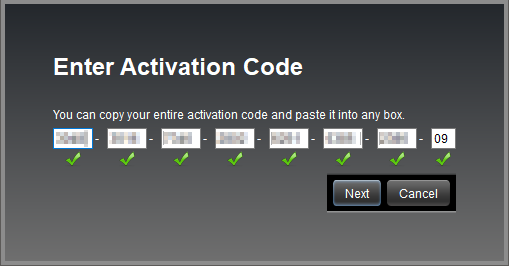
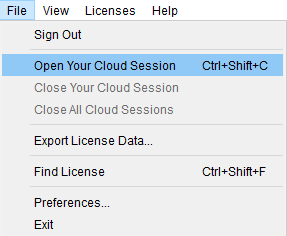
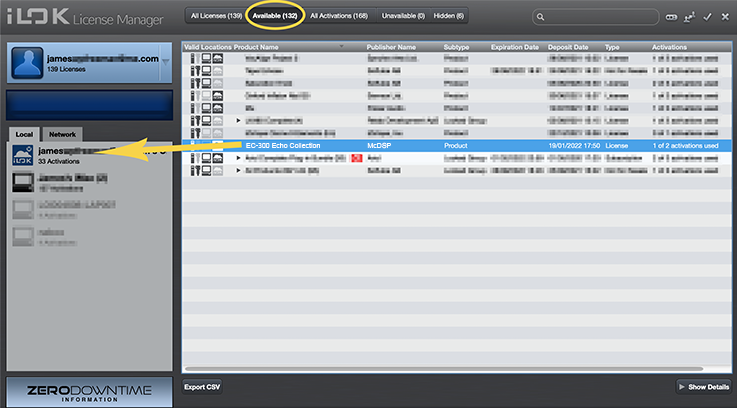
- McDSP plugins require an iLok2 or iLok3 USB Smart Key, or an iLok License Manager account and iLok Cloud for activation.
Important note: McDSP plugins require an iLok2 or iLok3 USB Smart Key, or a FREE iLok License Manager account and iLok Cloud session for authorisation. Each McDSP v7 plugin contains two activations per authorisation.
Delicious Audio
Magazine dedicated to all things audio.
“Acoustic and electric guitars got beefy; drums got bold and good sounds were obtained with minimal fuss.”