


 Log In

Free gifts available with your purchase
Deluxe Lo-Fi Bliss
Tape MELLO-FI is an easy-to-use effect plugin that brings instant chill atmosphere and vintage tape-aged warmth in a few clicks. Kick back and sprinkle sublime lo-fi vibes over your drum loops, vocals, mix bus, and anything in between.
Fun and straightforward to use, Tape MELLO-FI isn’t just a one-trick lo-fi pony. It comes as a feature-rich tool for all musicians and producers to use.
Before sampling, there was tape…
Tape MELLO-FI’s sound and behaviour are inspired by Mellotron V, Arturia's software recreation of the legendary Mellotron instrument.
The combination of tape reels, analog circuitry, and ageing over time gave the Mellotron a distinct sound. Fluttering, grainy, compressed; these qualities have become an endearing part of the ‘Tron sound.
Beauty in imperfection
Take any beat, sound, or project, and instantly inject beautiful nostalgic flavour and endless vibes.
Pitchy flutters, subtle distortion, warm saturation, velvety smooth filtered sounds; Tape MELLO-FI captures the uniquely imperfect behaviour of tape in perfect detail, distilled into a single plugin that you’ll always come back to.
Preset browser
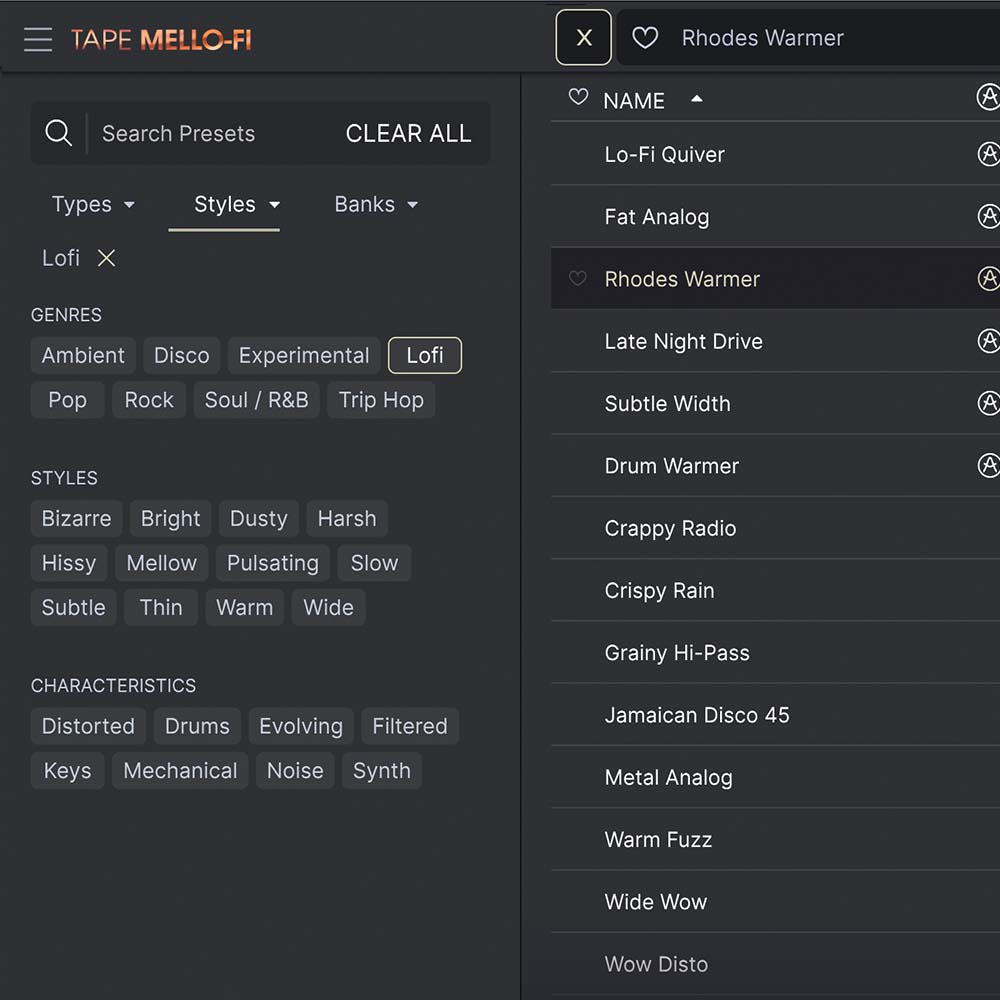
Instantly find the sound that’s in your head with intelligent & streamlined preset browsing. Search with keywords, musical style, and more - you can even save your favourites to quickly recall later.
Resizable GUI
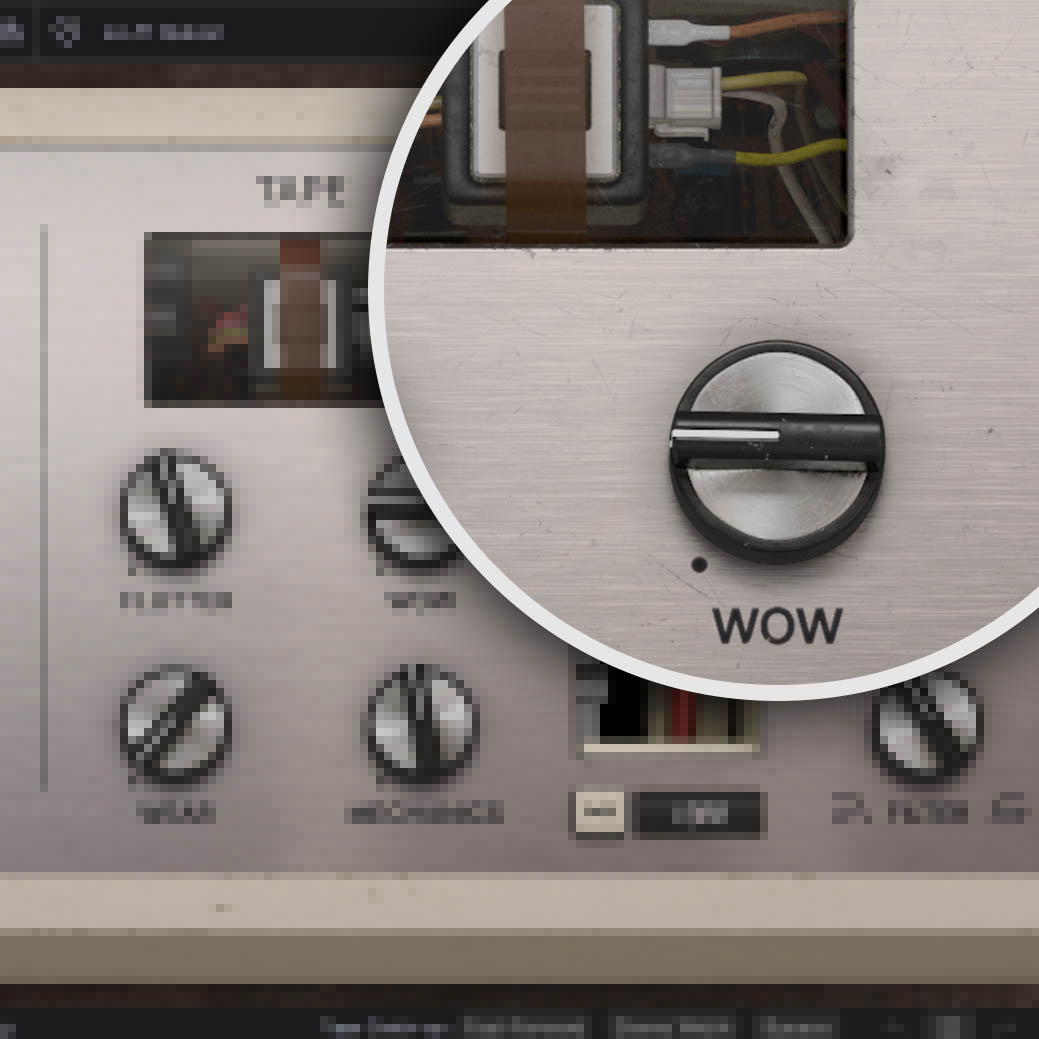
Whether you want the full visual immersion of our classic instrument emulations, or to save precious screen real estate, the interfaces for all of your Arturia plugins can be resized to a scale that suits you.
Features
- Authentic tape emulator & lo-fi effect based on Mellotron V’s vintage sound & behaviour
- Includes classic tape controls like Noise, Flutter, Wow, Wear, and Mechanics
- Introduces useful features like Distortion and Boost
- Interactive tape wheel with tempo-synchronized Tape Stop feature and optional Instant Tape Catch-up
- 12dB low-pass and high-pass filter section
- Enhanced Stereo Width feature introduces offsets to Wow & Flutter from left to right for an extra-wide sound
- Curated 25-preset library for instant-access to retro & lo-fi effects
- Apple M1 compatible
System Requirements
-
VST, AAX, Audio Unit, NKS (64-bit DAWs only).
Mac
- Mac OS 10.13+
- 4 GB RAM
- 4 cores CPU, 3.4 GHz (4.0 GHz Turbo-boost) or Apple Silicon CPU
- 1GB free hard disk space
- OpenGL 2.0 compatible GPU
Windows
- Win 10+ (64bit)
- 4 GB RAM
- 4 cores CPU, 3.4 GHz (4.0 GHz Turbo-boost)
- 1GB free hard disk space
- OpenGL 2.0 compatible GPU
- ARM processors not supported on Windows
Reviews Summary
While it aims to provide a helpful overview, it may not capture every perspective or detail. We encourage you to read individual reviews to make an informed decision.
Users widely praise this plugin for its ability to deliver high-quality, warm vintage and analog Mellotron tape emulation with beautiful lo-fi textures and saturation. It is celebrated for being easy to use with an appealing UI, making it great for quick results, tape stops, and gritty, old-school melodies. While a few minor critiques mention wishing it muted mechanical noise when pausing in a DAW and advising against buying it as a standalone, the overall consensus is overwhelmingly positive.


