


 Log In

Free gifts available with your purchase
One-Touch Analog Sparkle
Chorus JUN-6 is an iconic effect that brings massive stereo richness, analogue warmth, and subtle modulated movement to your sound at the touch of a button.
The Easy Chorus You’ve Always Wanted
A recreation of a rare and much-loved analogue gem, bringing unique BBD imperfection and the easiest set of FX controls you’ve ever seen for effortlessly warm analogue grain. The Juno chorus is unique in its popularity - rather than being a pedal, a rack-mounted unit, or a secret studio weapon, it was built into the classic ‘80s synths of the same name. But it was more than just a component. More than a handful of controls at the end of the chain.
Its beautiful stereo width, warm BBD analogue colour, and button-operated simplicity was - and still is - irresistible. The 3-mode design has been meticulously analyzed and reproduced to behave just like the original, right down to the LFO frequencies. Instant, classic variants of rate, depth, and stereo spread. To take it further, Arturia added a Manual mode to access some familiar modulation flexibility - just in case.
3 Mode Operation
Chorus JUN-6 stays faithful to the original with 3 easy-access modes. I is the classic warm stereo swirl, II increases the rate and depth, and the combined I+II mode sums both in mono for an irresistibly retro sound.
Mix Control
If you're looking to fine-tune Chorus JUN-6's subtle sound, we've added a familiar Mix control so you can dial in your perfect dry/wet balance.
Manual Mode
Crack open this classic effect and make it your own. While some of Chorus JUN-6's charm lies in its simplicity, you also have the option of customizing its sound completely for modern production purposes. Set your rate to sync or free-flowing, plunge the depth, and explore the phase for curious cyclical movement.
Mono Input
With this button engaged, you can sum your input source from stereo to mono for an even effect; otherwise your stereo input will be fully affected by the left and right delay lines for true ultra-wide immersion.
A Go-To Mixing Tool
There’s chorus, and then there’s Chorus JUN-6. This isn’t like using any old chorus pedal - this easy-to-use icon has a multitude of uses, and you’ll be hooked from your first go.
Stereo Widener
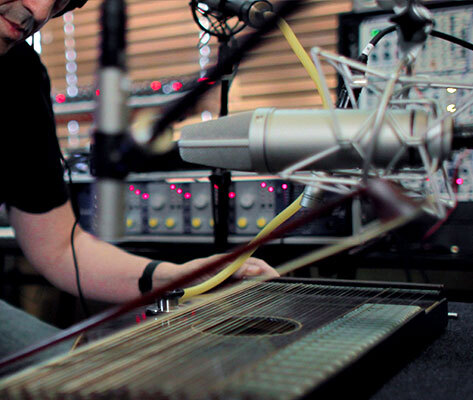
Take any sound, mono or stereo, and put it through Chorus JUN-6 for a larger-than-life stereo image that’s beautifully immersive, warm, and cinematic in quality.
Vocal Enhancer

Need your vocals to pop? Looking to make those BVs sit better in your mix? Chorus JUN-6 adds heaps of richness and sonic character to your vocal stems, whatever your style.
Colour Your Guitar

If your guitar track needs some new life breathed into it, or if you’re looking for some subtle shoegaze vibes, look no further - a match made in modulation heaven.
Synth Booster

From analog toplines to wavetable arps, your synth parts will simply sound better with a touch of Chorus JUN-6. Say no to static patches and bathe your synths in vibrant colour.
Fatten That Bass

This effect is a bassline miracle worker. Fingerstyle 4-string, stacked unison synth, FM punchiness - make it bigger, brighter, or badder with Chorus JUN-6.
Dynamite Drums

Want to give your breakbeat loops a splash of stereo colour? To make your hi-hats fill the mix from left to right? Chorus JUN-6 works a treat on any drum track.
Features
- Accurate recreation of the 2-mode Roland Juno 6 chorus.
- Include the original I+II position for vibrato-like sound.
- Additional Manual Depth and Rate controls for custom settings.
- LFO Phase knob allows for width adjustment.
- Sync to host tempo option.
- Mono/stereo input and Dry/wet Mix controls.
System Requirements
- Works in VST, AAX, Audio Unit, NKS (64-bit DAWs only).
Mac
- Mac OS 10.13+
- 4 GB RAM
- 4 cores CPU, 3.4 GHz (4.0 GHz Turbo-boost) or Apple Silicon CPU
- 1GB free hard disk space
- OpenGL 2.0 compatible GPU
Windows
- Win 10+ (64bit)
- 4 GB RAM
- 4 cores CPU, 3.4 GHz (4.0 GHz Turbo-boost)
- 1GB free hard disk space
- OpenGL 2.0 compatible GPU
- ARM processors not supported on Windows
Protection
All Arturia software is protected by the Arturia Software Center.


