Log In

Free gifts available with your purchase
Whirl is a barber-pole phaser. It is based on a Bode frequency shifter model with a feedback line, an algorithm that creates unique spectrum peaks and notches that move upwards or downwards in a seemingly endless fashion – with one spectrum sweep smoothly morphing into the next one, like an audible illusion. Whirl features up to three fully synchronized barber-pole phaser stages: this allows you to control how gentle or dramatic the effect is. At its most extreme settings, Whirl is capable of deeply resonant filtering. It almost individually suppresses and accentuates different frequency harmonics. By design, the spectrum sweep frequency is bipolar - and can go from downwards to upwards motion and back completely seamlessly.
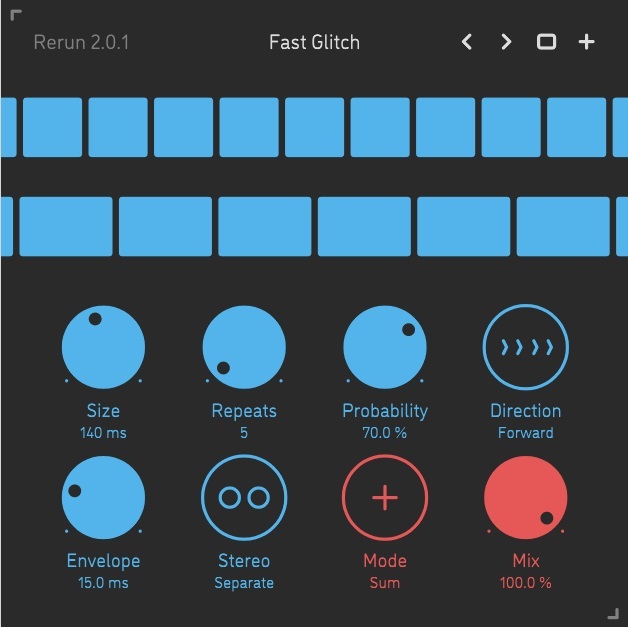
As always with a Sinevibes product, Whirl has a carefully crafted, clean and intuitive user interface. It features colour-coded graphics for consistency with other plugins in their collection and well-calibrated contrast for optimal visibility in most lighting conditions. The interface supports retina resolution and also uses GPU-accelerated rendering, never impairing audio processing.
Features
Sound engine
- Barber-pole phaser based on Bode frequency shifter, with up to three sequential stages and progressive feedback
- Variable stereo phase offset
- Lag filters on all continuous parameters for smooth, click-free adjustment
- Supports mono › mono, mono › stereo, and stereo › stereo channel configurations
Graphic interface
- Colour-coded graphic elements
- Consistent name, mapping, value, and unit implemented for all parameters in both graphic user interface and host control/automation
- Built-in preset management functions
- Supports window size scaling up to 200%
System Requirements
Mac
- macOS 10.9 or later (64-bit only)
- Intel or M1 Apple processor.
- AU / AAX / VST3
Windows
- Windows 8.1 or later (64-bit only)
- PC computer with x86 processor.
- AAX / VST3