


 Log In

Free gifts available with your purchase
Get Rich Texture And Shimmer With Legendary Studio Hardware
Now compatible with any soundcard on Mac and PC
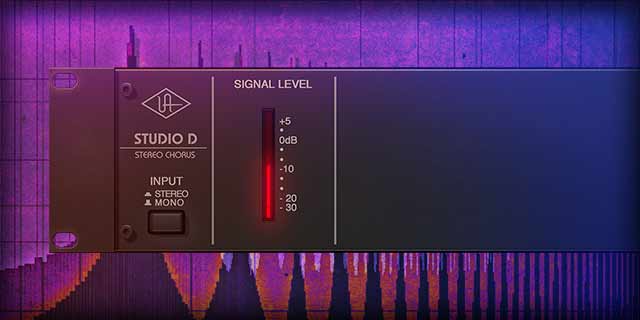
An exacting emulation of the Roland Dimension D* introduced in 1979, the Studio D Chorus plug‑in gives you the "secret sauce" analog widening effects used by the likes of Stevie Ray Vaughan, Brian Eno, M83, and many more.
Now you can give your guitars, drums, synths, and vocals the same stunning analog modulation textures of the iconic vintage rack gear — with the push of a button.
Add Thickness and Width to Anything
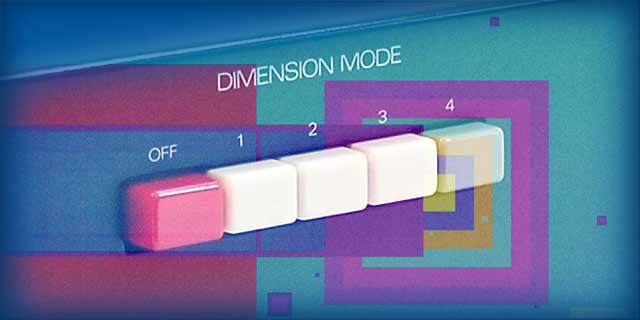
Just like the vintage hardware, use Studio D Chorus' push buttons in any combination for a colorful palette of subtle thickening. Engage all four buttons at once and you get a beautiful chewy modulation texture that works on any instrument.
Create Movement and Interest
Make simple guitar/vocal arrangements sound deeper and more interesting, or quickly gel groups of strings and vocals — without compression, EQ, or reverb. For floating guitar textures and synth pads, the Studio D Chorus plug‑in simply can’t be beat.
Features
- Use any audio interface, with both UAD Native and Apollo Realtime/UAD-2 versions included
- Create rich spatial effects on guitars, drums, and synths
- Add openness to background vocals and strings
- Experience glorious space and depth with “all buttons” mode
- Enhance tracks and add interest without obviously affecting signals
Versions Included with your Purchase
- UAD Native: Runs on your Mac or PC without any UA hardware
- Apollo Realtime & UAD-2: Runs accelerated on Apollo interfaces and UAD-2 hardware
- macOS Big Sur 11, Monterey 12, Ventura 13, Sonoma 14, Sequoia 15 and Tahoe 26
- Windows 10 or Windows 11 (64-bit editions)
- Intel, AMD, or Apple silicon processor
- Internet connection to download software and authorize UAD Native plug-ins (UADx)
- Free iLok account
- Compatible with iLok USB (2nd generation or higher) but not required
- Free UA Connect application for managing UAD Native plug-ins (UADx)
- A supported DAW compatible with VST3, AU, or AAX plug-in file formats.
Reviews Summary
While it aims to provide a helpful overview, it may not capture every perspective or detail. We encourage you to read individual reviews to make an informed decision.
Reviewers praise this chorus unit for its rich, spacious, and authentic sound that faithfully mimics the original hardware. They highlight its simple, foolproof three-button design and ease of use, noting that it works exceptionally well across guitars, background vocals, and bass.


